
Building workflows
Triggers, actions, data flow, and the workflow builder.
This page covers the building blocks of a Lightfield workflow: what each trigger and action does, how data flows between steps, and how to configure them in the builder.
The workflow builder
Section titled “The workflow builder”Workflows are built in a visual step builder. You choose a trigger, then add steps in sequence. Each step is configured individually with its own parameters and can reference output from the trigger or any prior step.
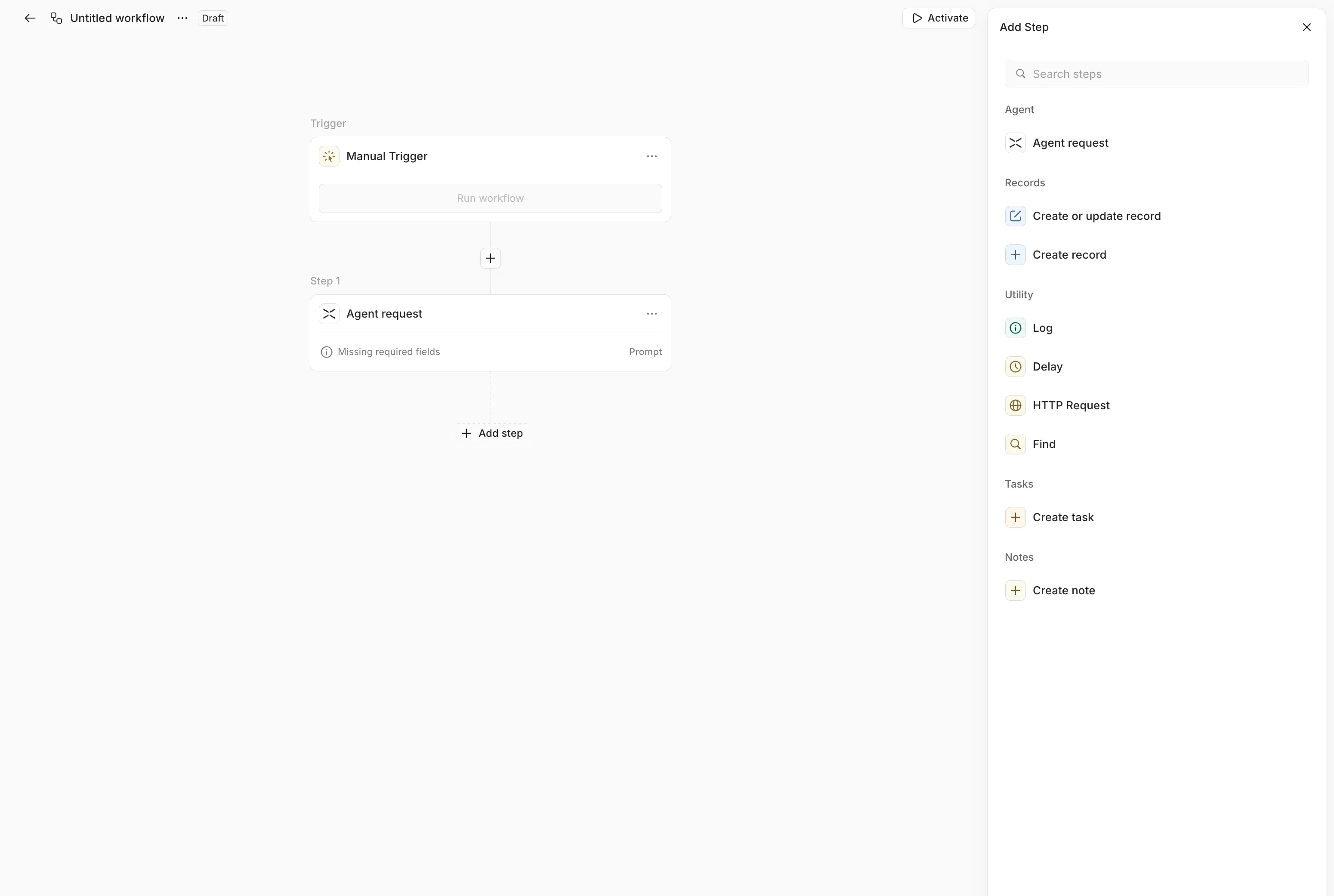
Every workflow starts with exactly one trigger. From there, you add steps one at a time using the ”+” button. Steps execute in the order you define them.
Triggers
Section titled “Triggers”Webhook
Section titled “Webhook”Receives an HTTP POST request from an external service (or via the Lightfield API). When the webhook fires, the full JSON request body becomes the trigger’s output, available to all subsequent steps.
To set up a webhook trigger:
- Add a webhook trigger to your workflow
- Copy the generated webhook URL
- Configure the external service (Stripe, Kondo, your internal tools) to POST to that URL
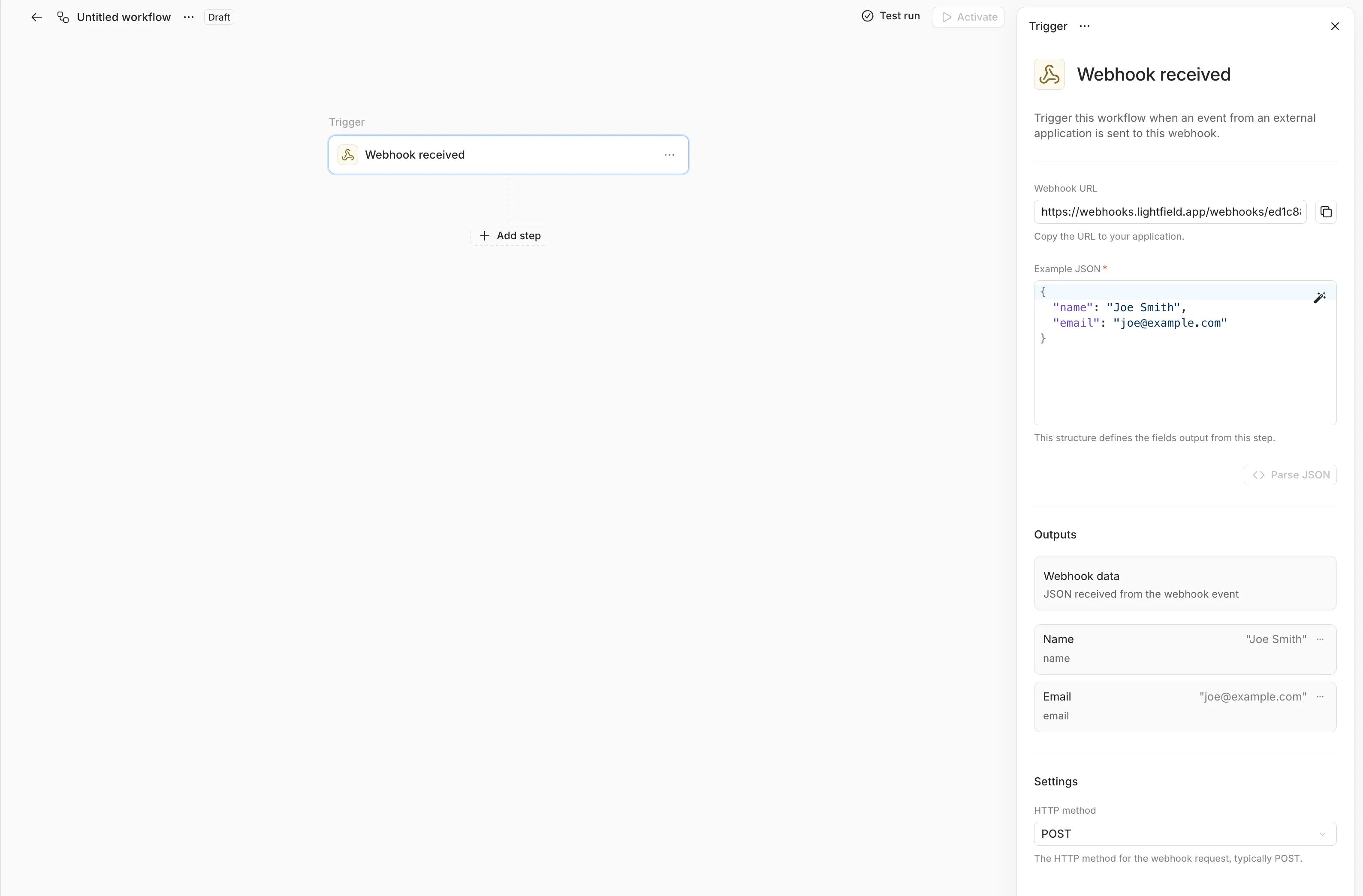
You can provide an example JSON payload to help the builder’s variable picker suggest available fields. This is optional. The workflow will accept any valid JSON regardless of the example.
Object lifecycle
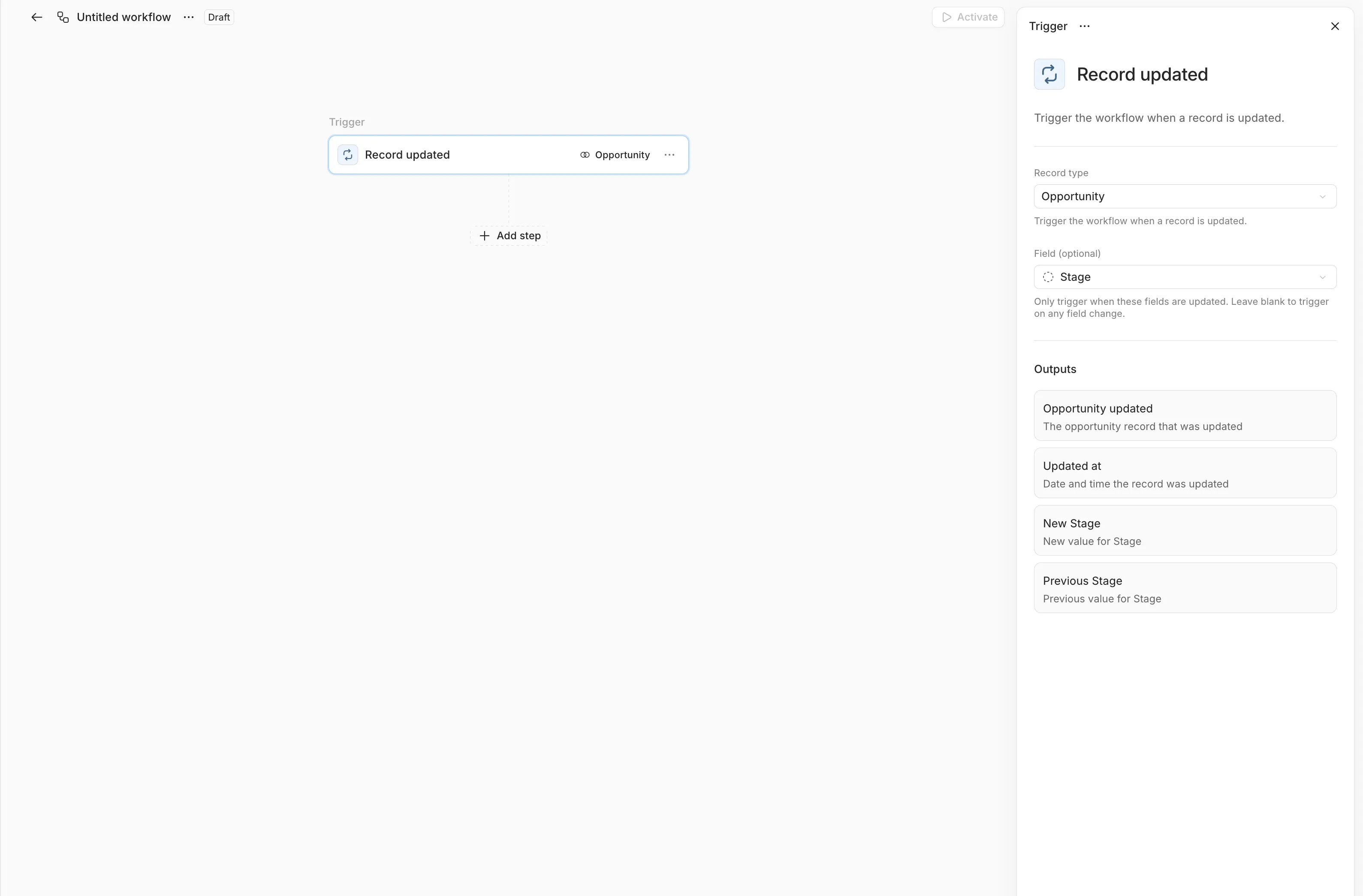
Section titled “Object lifecycle”Fires when an object is created or updated in Lightfield. You choose the entity type and the event:
| Entity type | Create | Update |
|---|---|---|
| Contact | Yes | Yes |
| Account | Yes | Yes |
| Opportunity | Yes | Yes |
| Meeting | Yes | Yes |
| Task | Yes | Yes |
| Note | Yes | Yes |
Field-level watching (update triggers only): By default, an update trigger fires on any field change. You can restrict it to specific fields, so a workflow that reacts to opportunity stage changes won’t fire when someone edits the description.
Trigger output for creates:
- The full object reference (ID, type, fields)
occurredAttimestamp
Trigger output for updates:
- The full object reference
_diffobject with before and after values for each changed fieldoccurredAttimestamp
Access diff values in subsequent steps:
{{trigger._diff.stage.before}} // Previous value{{trigger._diff.stage.after}} // New valueScheduled
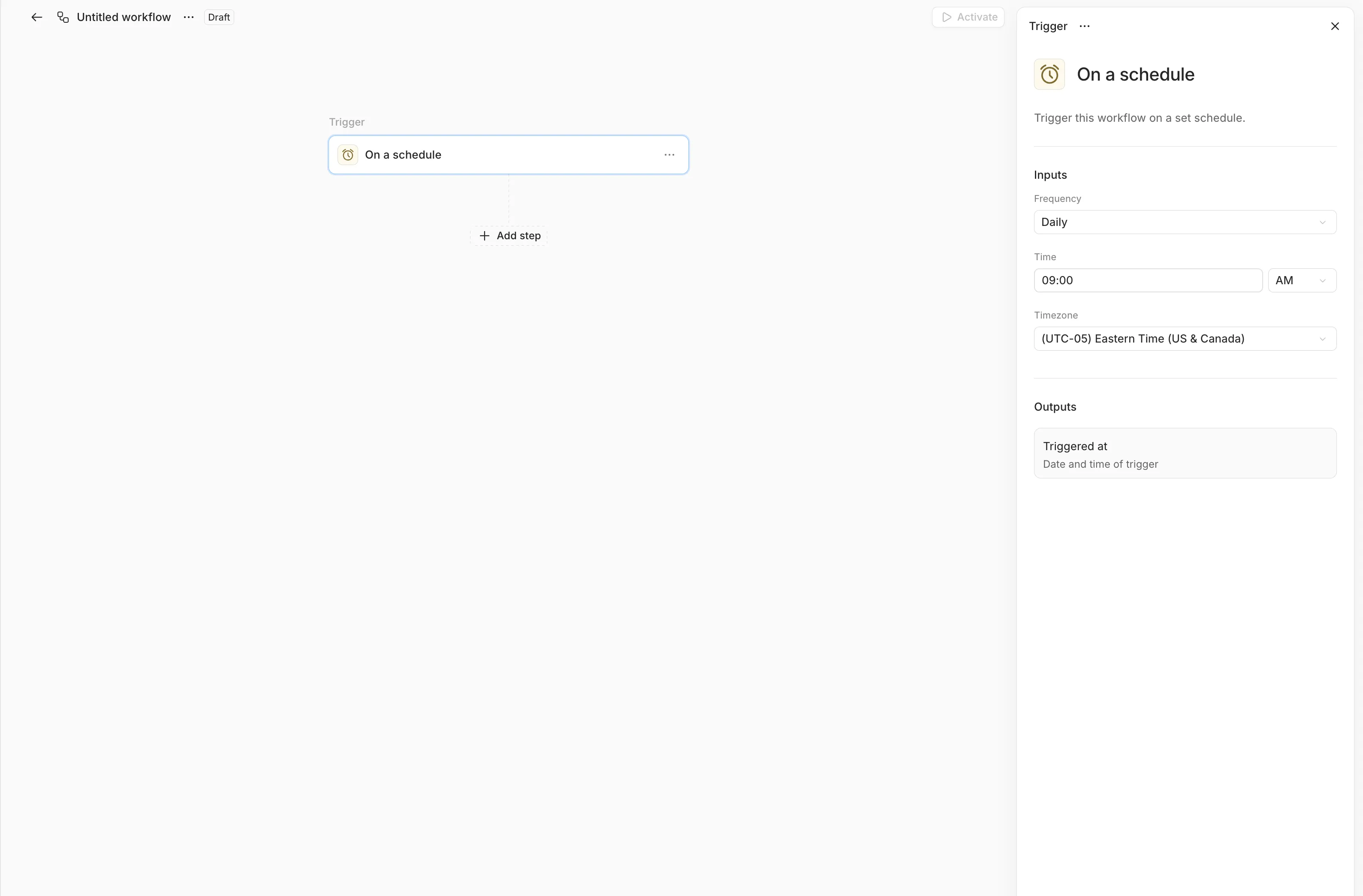
Section titled “Scheduled”Runs on a recurring cadence. Four frequency options:
| Frequency | Configuration |
|---|---|
| Daily | Time of day (HH:MM) |
| Weekly | Day(s) of week + time of day |
| Monthly | Day(s) of month + time of day |
| Advanced | Custom cron expression |
All schedules are timezone-aware. You set an IANA timezone (e.g., America/New_York, Europe/London) and the schedule respects daylight saving transitions.
Manual
Section titled “Manual”Fires when you click “Run” in the UI. Useful for testing workflows during development or for one-off operations. Manual triggers accept an optional JSON payload as input.
Actions
Section titled “Actions”Object operations
Section titled “Object operations”Create and modify records directly in Lightfield:
| Action | Description |
|---|---|
| Create contact | Creates a new contact record |
| Create or update contact | Upserts: creates if not found, updates if exists |
| Create account | Creates a new account record |
| Create or update account | Upserts: creates if not found, updates if exists |
| Create opportunity | Creates a new opportunity record |
| Create task | Creates a task (TODO, IN_PROGRESS, COMPLETE, or CANCELLED) |
| Create note | Creates a note attached to a record |
| Find object | Searches for records with filters and sorting |
Field values support template references. Map data from prior steps directly into record fields:
Name: {{trigger.customer_name}}Email: {{trigger.customer_email}}Source: Stripe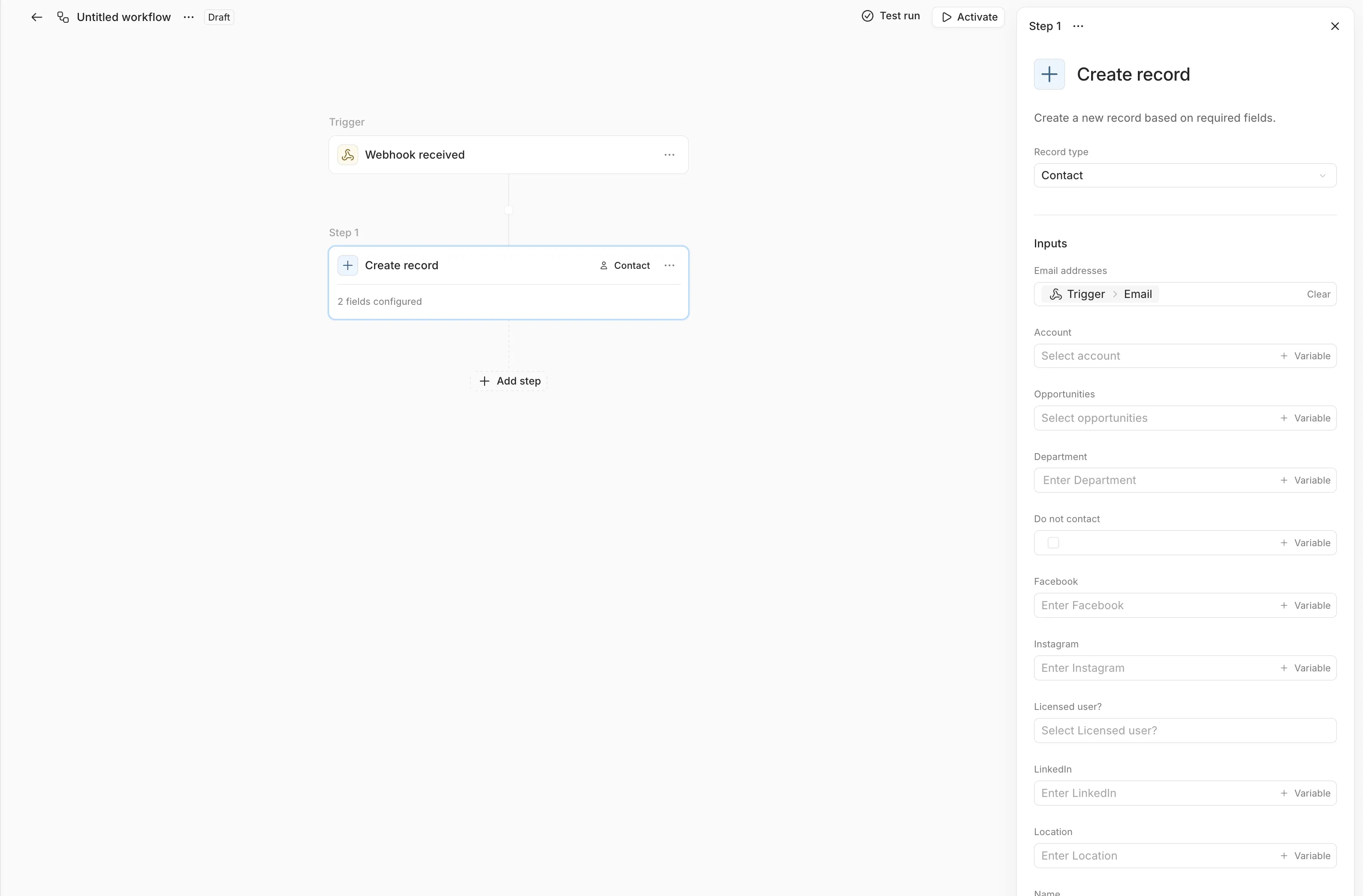
Find object supports filter operators: IS, IS_NOT, CONTAINS, DOES_NOT_CONTAIN, IS_ANY_OF, IS_NONE_OF, and comparison operators for numeric/date fields. Results are available to subsequent steps.
HTTP request
Section titled “HTTP request”Calls an external API:
| Parameter | Options |
|---|---|
| Method | GET, POST, PUT, PATCH, DELETE |
| URL | Any HTTPS endpoint (template variables supported) |
| Headers | Arbitrary key-value pairs |
| Body | JSON (template variables supported) |
The response is parsed automatically. Status code, headers, and the response body are all available as step output:
{{httpStep.statusCode}} // 200{{httpStep.body.result}} // Parsed JSON field{{httpStep.headers.x-custom}} // Response header value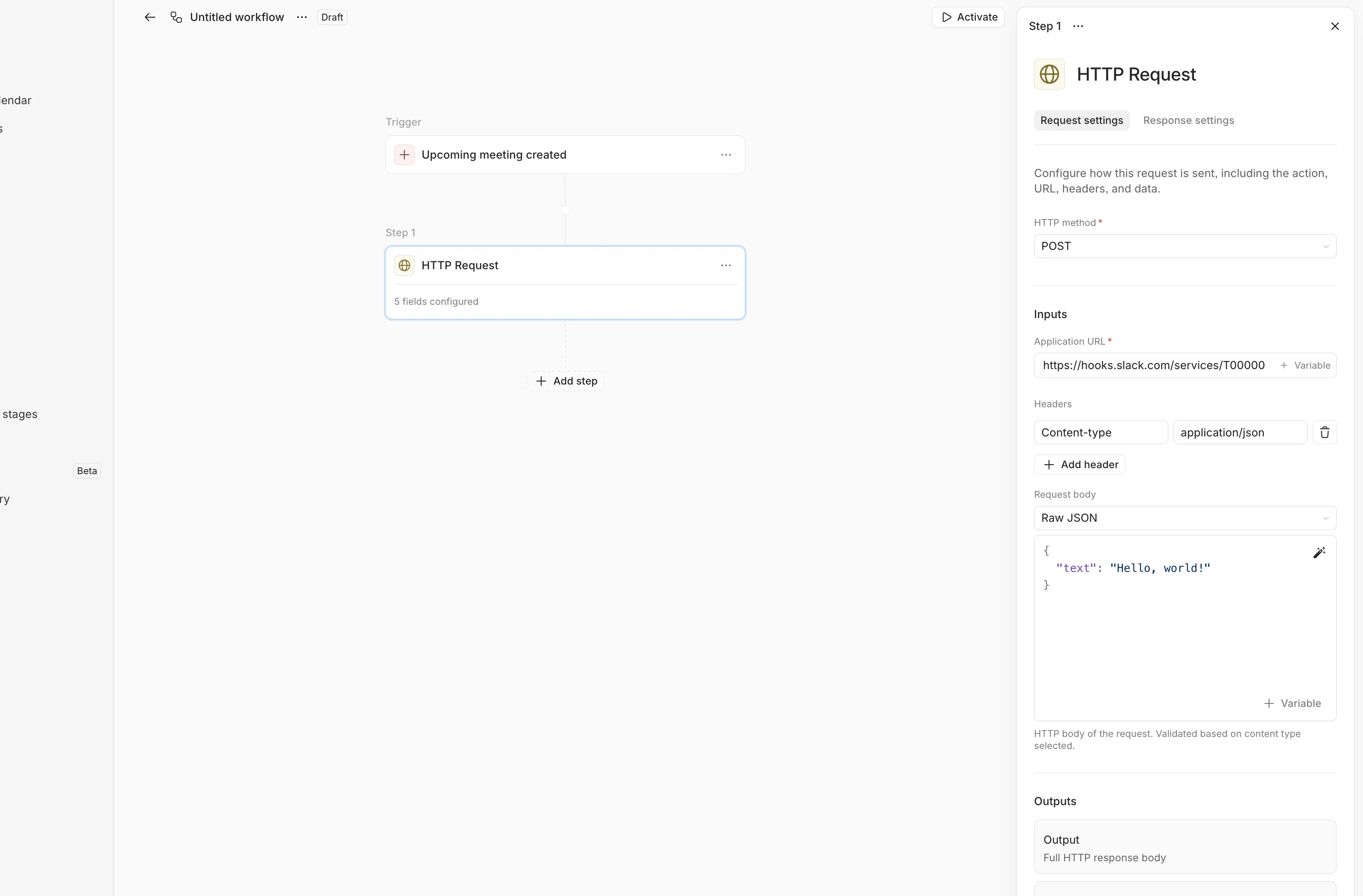
Agent request
Section titled “Agent request”Runs a Claude-powered AI agent as a workflow step. You provide a prompt, and the agent executes it with access to Lightfield’s tool ecosystem.
Capabilities you can enable:
| Capability | What the agent can do |
|---|---|
| Entity creation | Create contacts, accounts, opportunities, emails |
| Entity updates | Update fields on any record |
| Code execution | Run Python or bash in a sandboxed environment |
| Web search | Search the web for enrichment data |
| Record access | Search, read, and list records (always available) |
| Task & note management | Create and update tasks, notes, and artifacts (always available) |
The agent also has access to connected MCP tool servers: Granola, Salesforce, Slack, Airtable, and others. A single agent request step can pull data from an external service via MCP, reason about it, and write structured output back to Lightfield.
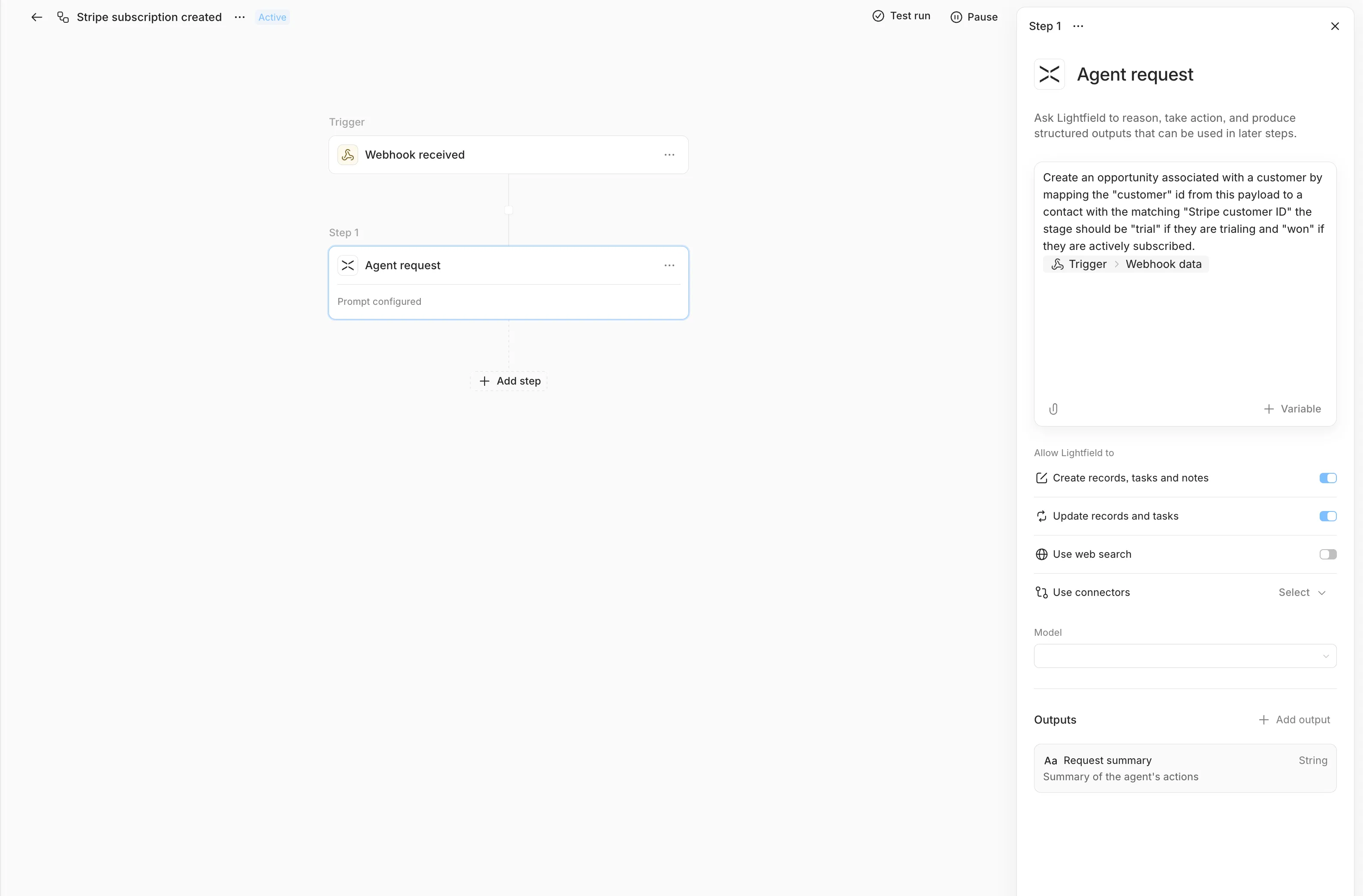
When to use agent request vs. discrete actions:
Use discrete object or HTTP actions when the mapping is simple and deterministic. Use agent request when the data needs interpretation, when field mappings aren’t 1:1, or when the logic would require a dozen conditional branches to express as rules.
Pauses workflow execution for a specified duration. Supports milliseconds, seconds, minutes, hours, and days. Useful for rate-limiting outbound requests or waiting for external processes to complete.
Writes a message to the workflow’s execution history. Template variables are resolved, so you can log intermediate values for debugging:
Created contact {{createContact.contact.id}} from Stripe customer {{trigger.customer_id}}Data flow
Section titled “Data flow”Execution context
Section titled “Execution context”Every workflow run maintains a context object with two fields:
input: the trigger’s payload (webhook body, lifecycle event, schedule metadata)output: a map of step outputs keyed by step ID, built incrementally as steps complete
When step enrich completes, its output is stored at output.enrich. Any subsequent step can reference it as {{enrich.fieldName}}.
Template syntax
Section titled “Template syntax”Templates use double-brace syntax to reference step outputs:
{{nodeId}} // Entire output of a step{{nodeId.field}} // Specific field{{nodeId.nested.field}} // Nested field access{{trigger.field}} // Trigger output (trigger is always the first step)For Object lifecycle update triggers, the _diff field provides change tracking:
{{trigger._diff.fieldName.before}} // Value before the update{{trigger._diff.fieldName.after}} // Value after the updateTemplates resolve against the full context. You can reference any prior step’s output, not just the immediately preceding one.
Execution order
Section titled “Execution order”Steps execute in the order they appear in the builder. Each step waits for the previous step to complete before starting. If a step fails, subsequent steps are skipped and the workflow is marked as failed.
Workflow lifecycle
Section titled “Workflow lifecycle”Workflows have three states:
| Status | Description |
|---|---|
| Draft | Being edited. Triggers are not active. |
| Active | Published and accepting triggers. Edits create new versions. |
| Deactivated | Paused. Triggers stop firing. Can be reactivated. |
Each publish creates an immutable version snapshot. Running executions are pinned to the version that was active when they started. You can safely edit and republish without affecting in-flight runs.
Next steps
Section titled “Next steps”- Workflow recipes - End-to-end examples: Stripe ingestion, Kondo sync, Granola digests, and outbound sync.
- How workflows work - Architecture deep-dive for the technically curious.