
Workflow recipes
End-to-end workflow examples for common integration patterns.
Five patterns that cover the core data flows: webhook ingestion with AI, external service sync, scheduled MCP tool access, transcript sync, and outbound sync. Each recipe is a complete workflow you can build in the Lightfield builder.
Stripe → AI → Lightfield records
Section titled “Stripe → AI → Lightfield records”Pattern: Webhook in → AI interprets → record writes
Stripe sends dozens of event types with inconsistent schemas. A customer.subscription.created payload looks nothing like an invoice.payment_succeeded payload. Traditional automation would require a branching tree of conditionals to map each event type to the right fields. The AI agent step handles this with a single prompt.
The workflow
Section titled “The workflow”Trigger: WebhookStep 1: Agent requestStep 2: LogTrigger: Webhook
Configure Stripe to POST webhook events to your Lightfield webhook URL. The raw JSON payload becomes the trigger output.
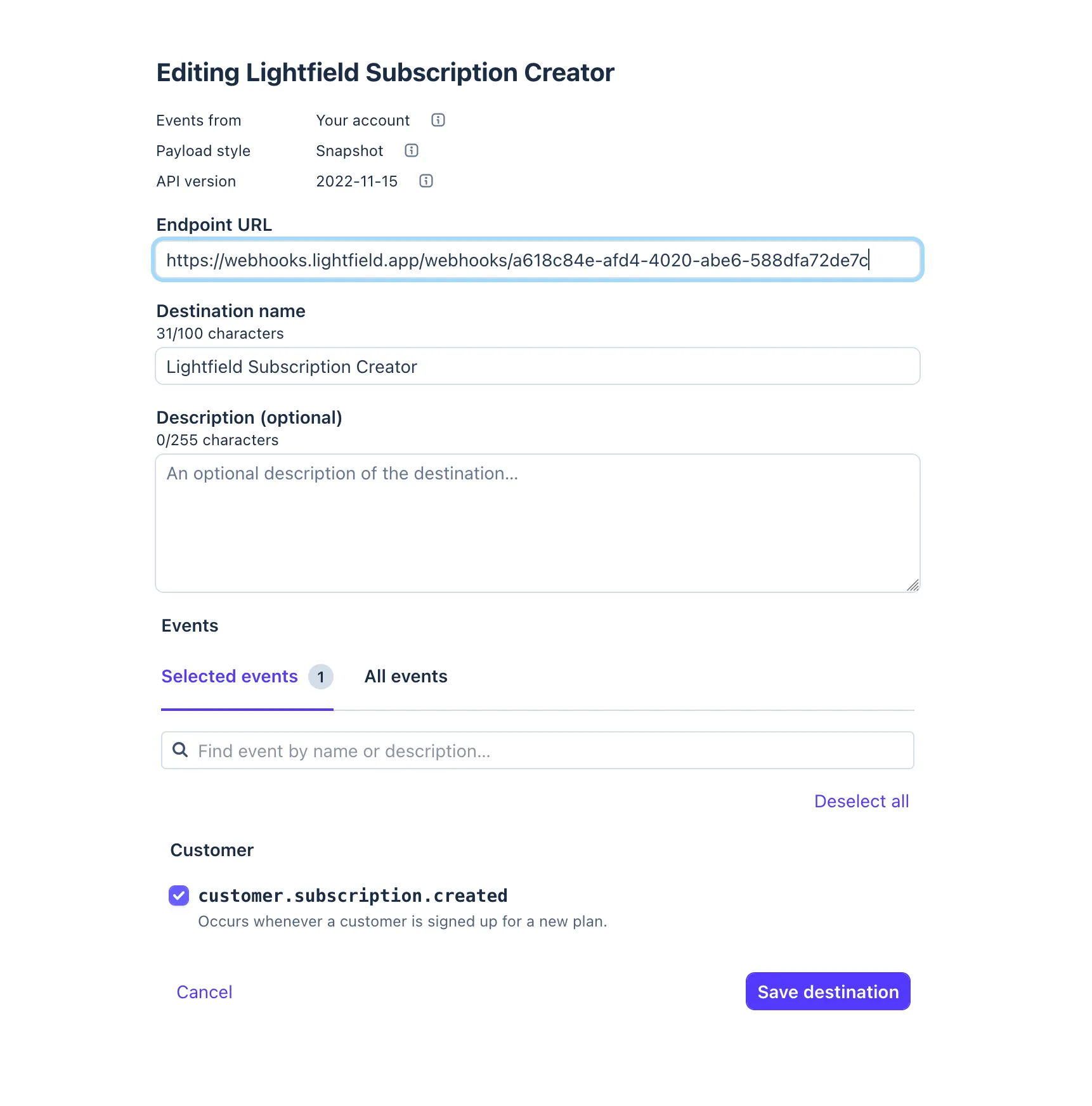
Step 1: Agent request
Prompt the agent to interpret the Stripe event and take appropriate actions:
You are receiving a Stripe webhook event. Based on the event type and payload:
1. If this is a customer-related event, find or create a Contact using the   customer email. Set the contact source to "Stripe".2. If this is a subscription or payment event, find or create an Account   using the customer's company name (from metadata or email domain).3. If this involves revenue (payment, subscription, invoice), create or   update an Opportunity with the amount and status mapped from the   Stripe event status.
Stripe payload:{{trigger}}
Enable entity creation and entity updates. The agent has access to all your Lightfield data. It will search for existing records before creating duplicates, map Stripe’s nested metadata fields to the right attributes, and handle edge cases (missing company name, multiple subscriptions per customer) that would break rule-based automation.
Step 2: Log
Processed Stripe event {{trigger.type}} for {{trigger.data.object.customer}}Why this works
Section titled “Why this works”Stripe’s schema varies by event type, and the mapping from payment data to records requires judgment. Is a subscription renewal a new opportunity or an update to an existing one? Should a refund close the opportunity or just update the amount? The AI agent makes these decisions contextually, using the same reasoning a human rep would.
Kondo → LinkedIn DM sync
Section titled “Kondo → LinkedIn DM sync”Pattern: Webhook in → AI interprets → contact enrichment
Kondo captures LinkedIn DM conversations and can forward them via webhook. This workflow ingests those conversations and attaches them as context to the right contact records in Lightfield.
The workflow
Section titled “The workflow”Trigger: WebhookStep 1: Agent requestTrigger: Webhook
Configure Kondo to POST LinkedIn DM data to your Lightfield webhook URL. The payload includes the conversation participants, message content, and metadata.
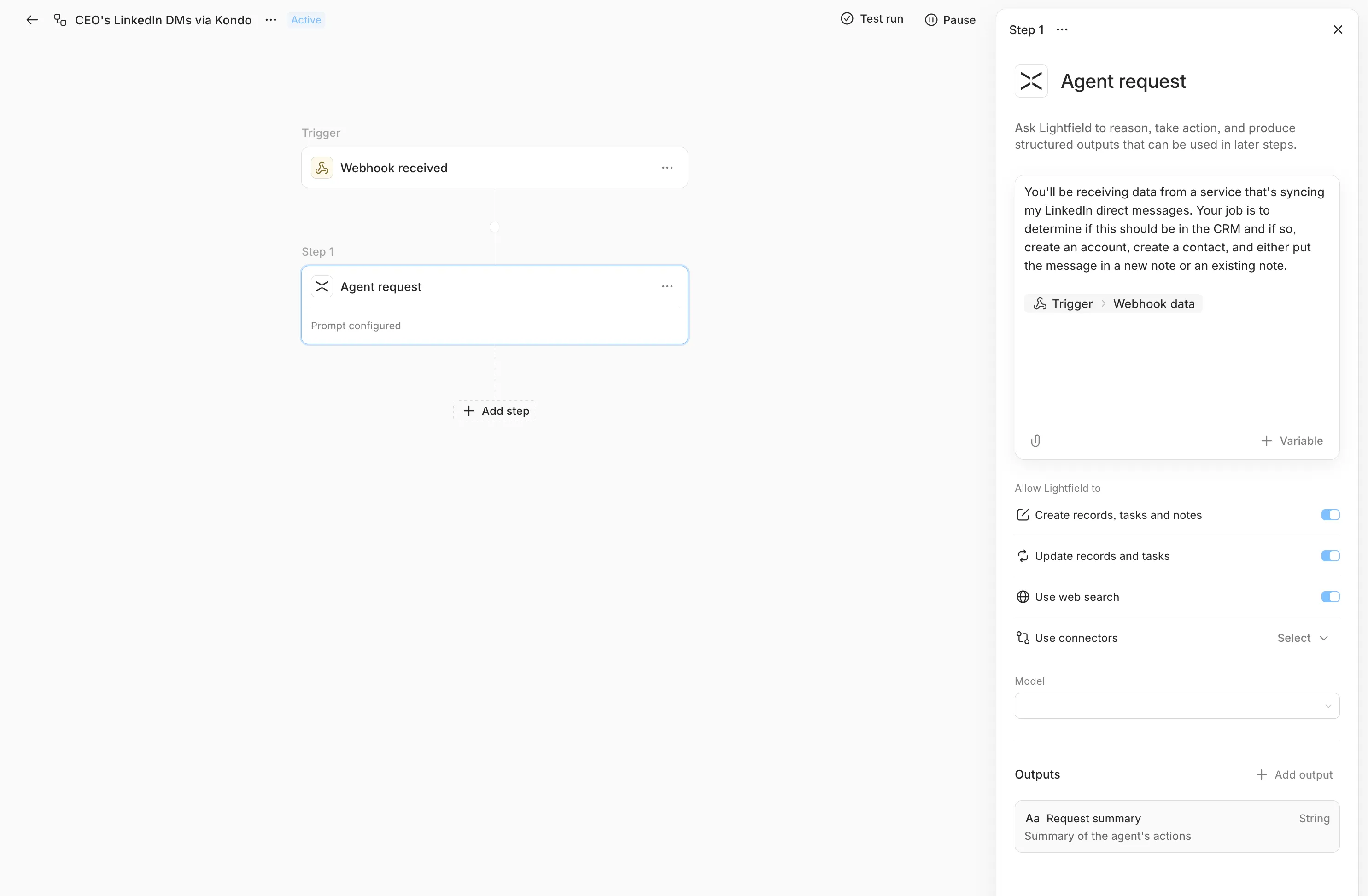
Step 1: Agent request
You are receiving LinkedIn DM conversation data from Kondo. For eachconversation:
1. Find the Contact in Lightfield by matching the LinkedIn profile name   or email. If no match exists, create a new Contact with the available   information (name, LinkedIn URL, company if available).2. Create a Note on the Contact with the conversation summary.   Title: "LinkedIn DM - {{date}}"   Include key discussion points, any mentioned next steps, and the   conversation sentiment.3. If the conversation mentions a deal, product interest, or buying signal,   create or update an Opportunity linked to the Contact's Account.
Kondo payload:{{trigger}}
Enable entity creation and entity updates. The agent will fuzzy-match contact names against your existing records, handle cases where a LinkedIn name doesn’t exactly match the Lightfield record, and extract structured signals (buying intent, next steps) from unstructured conversation text.
Why this works
Section titled “Why this works”LinkedIn DMs are unstructured text. Mapping them to records requires understanding who the conversation is with (name matching across systems), what was discussed (content extraction), and whether it’s sales-relevant (intent classification). This is exactly the kind of work that is impossible with field-mapping rules and trivial for an AI agent.
Daily Granola meeting digest
Section titled “Daily Granola meeting digest”Pattern: Scheduled trigger → AI with MCP tools → record enrichment
Granola records and transcribes meetings. This workflow runs daily, pulls recent meeting notes via Granola’s MCP server, and updates Lightfield with the relevant context: tasks, notes, and opportunity updates derived from what was actually discussed.
The workflow
Section titled “The workflow”Trigger: Scheduled (Daily, 9:00 AM)Step 1: Agent request (with Granola MCP)Trigger: Scheduled
Set to daily, 9:00 AM in your team’s timezone. The workflow fires once per day and hands off to the AI agent.
Step 1: Agent request (with Granola MCP access)
Pull yesterday's meeting notes from Granola. For each meeting:
1. Identify the attendees and match them to Contacts in Lightfield.2. Find the relevant Account and Opportunity for the meeting context.3. Create a Note on the Account summarizing the key discussion points,   decisions made, and any objections or concerns raised.4. Create Tasks for any action items mentioned in the meeting, assigned   to the appropriate team member, with due dates if mentioned.5. If the meeting revealed a change in deal status, confidence, or   timeline, update the Opportunity fields accordingly.
Focus on extracting actionable information, not transcription summaries.
The agent uses Granola’s MCP server to fetch meeting data, then uses Lightfield’s built-in tools to create and update records. No HTTP step needed. MCP provides structured access to Granola’s data directly within the agent’s tool ecosystem.
Why this works
Section titled “Why this works”Meeting notes are the highest-signal, lowest-structure data in a sales organization. Reps discuss deal blockers, timeline changes, and next steps in conversation, but that context rarely makes it into the system of record. This workflow closes the loop automatically: meetings happen, Granola captures them, and the AI agent extracts structured updates from unstructured conversation.
The MCP integration is key. Instead of building a custom HTTP integration with Granola’s API, the agent accesses Granola through a standard tool interface. When Granola updates their API, the MCP server handles the change. Your workflow prompt stays the same.
Granola → Lightfield CRM transcript sync
Section titled “Granola → Lightfield CRM transcript sync”Pattern: Scheduled trigger → AI with Granola MCP → transcript upsert
The Lightfield meeting bot is the most seamless way to get meeting notes into Lightfield. But if Granola is already part of your workflow, this recipe matches Granola meetings to Lightfield meetings and syncs missing transcripts without overwriting the ones already in your CRM.
The workflow
Section titled “The workflow”Trigger: Scheduled (Daily)Step 1: Agent request (with Granola MCP)Trigger: Scheduled
Set the trigger to run daily in your workspace timezone. This recipe looks back across the prior day of meetings, matches Granola notes to CRM meetings, and syncs only the transcripts that are still missing in Lightfield.
Step 1: Agent request (with Granola MCP access)
The following prompt has given us good results:
# Granola → Lightfield CRM Sync
## Context
- Granola tool output contains timestamps in **UTC timezone or local timezone**. Internal CRM tool outputs contain timestamps in the timezone specified in the system prompt.- Extract the timezone from the system prompt line: `All timestamps are listed in the user's timezone, {timezone}.`- Match meetings using **attendee email overlap** + **title similarity** + **time alignment** after timezone conversion.- Granola MCP tool outputs are saved to workspace files — read them with `bashExecutor` (`cat /workspace/.mcp_results/<filename>.json`).
---
## Step 1: Fetch data (parallel calls)
Make these calls simultaneously and wait for all results.
### 1a. Granola meetings
```jsontool: mcp_granola_list_meetings{  "time_range": "custom",  "custom_start": "<ISO date: 1 days ago>",  "custom_end": "<ISO date: today>"}```
### 1b. CRM meetings
```jsontool: getMeetings{  "description": "meetings from the past 1 days",  "filterExpression": "startDate:>=<1 days ago ISO> && startDate:<=<now ISO>",  "offset": 0,  "sortExpression": ["startDate:desc"]}```
---
## Step 2: Fetch Granola content (one at a time)
For each meeting ID from **1a**, fetch **both the transcript and the summary** so we can prefer transcript and fall back to summary.
### 2a. Try the transcript first
```jsontool: mcp_granola_get_meeting_transcript{  "meeting_id": "<single_meeting_id>"}```
The result is saved to `/workspace/.mcp_results/<filename>.json` with shape `{ id, title, transcript }`. After saving, use `bashExecutor` to read the file and check whether `transcript` is a non-empty string. Extract just the transcript text into a clean text file (e.g., `/workspace/.mcp_results/transcript_<granola_id>.txt`) — do **NOT** pass the JSON wrapper to `upsertMeetingTranscript`.
### 2b. Fetch the summary as fallback
```jsontool: mcp_granola_get_meetings{  "meeting_ids": ["<single_meeting_id>"]}```
Extract just the `<summary>` content into a clean text file (e.g., `/workspace/.mcp_results/summary_<granola_id>.txt`).
### 2c. Pick the source for this meeting
- If **2a** returned a non-empty transcript: use the transcript file as `source_file`, set `source_type = "transcript"`.- Else if **2b** returned a non-empty summary: use the summary file as `source_file`, set `source_type = "summary"`.- Else: mark this Granola meeting as `source_type = "none"` and skip it in Step 4.
Track the mapping `granola_id → { source_file, source_type }` for use in Step 4.
---
## Step 3: Match meetings
Use `bashExecutor` with Python to match programmatically. Do not match by hand.
1. Extract the workspace timezone from the system prompt.2. If required, convert Granola timestamps to the workspace timezone using `zoneinfo` (never hardcode offsets — handle DST correctly):
```pythonfrom datetime import datetimefrom zoneinfo import ZoneInfo
org_tz = ZoneInfo(org_timezone)  # from system promptgranola_utc = datetime.fromisoformat(granola_timestamp).replace(tzinfo=ZoneInfo("UTC"))granola_local = granola_utc.astimezone(org_tz)```
3. For each Granola meeting, find the CRM meeting where:- Start times are within 30 minutes after timezone conversion, **and**- Attendee emails overlap, **and**- Title is similar (fuzzy match — check if titles share key words, ignoring case and filler words).
4. **Matching confidence:** Only accept a match when at least two of these three signals are strong (e.g., exact title + time match, or 2+ email overlaps + time match). A single shared attendee with a completely different title is **not** a valid match.5. Output matched rows with: `granola_id`, `source_file`, `source_type`, `crm_meeting_id`, `crm_meeting_title`, `account_name`, `hasTranscript`.
`hasTranscript` and attendee emails come from the `getMeetings` output from Step 1b.
Skip unmatched meetings on either side.
---
## Step 4: Sync transcripts
For each matched meeting:
- **If `hasTranscript` is `true`:** do nothing. Log: `"Transcript preserved for [title]."`- **If `hasTranscript` is `false` and `source_type != "none"`:** upsert the clean file from Step 2 as the CRM transcript.
```jsontool: upsertMeetingTranscript{  "meetingId": "<crm_meeting_id>",  "meetingTitle": "<meeting title>",  "workspaceFilePath": "<source_file from Step 2>",  "fileUrl": null,  "transcriptText": null}```
Do not reason about transcript contents. The `hasTranscript` boolean is the only signal — if it is `true`, the meeting already has a transcript and you must do nothing.
Do not upload any placeholders. If `source_type == "none"`, skip and log it under Skipped in Step 5.
---
## Step 5: Summarize
Return:
1. **Matched:** each Granola → CRM match with meeting title and account name.2. **Synced (transcript):** meetings where the Granola transcript was loaded.3. **Synced (summary fallback):** meetings where Granola had no transcript so the summary was loaded instead.4. **Preserved:** meetings that already had a CRM transcript and were skipped.5. **Skipped (no Granola content):** matched meetings where Granola returned neither transcript nor summary.6. **Unmatched:** any Granola or CRM meetings that could not be matched.
Enable Granola MCP access and entity updates. The agent uses Granola to fetch meeting data, matches meetings in its execution environment, and writes transcripts back to Lightfield only when the CRM meeting does not already have one.
Why this works
Section titled “Why this works”Meeting data rarely lines up perfectly across systems. Timestamps use different timezones, titles vary, and attendee lists are incomplete. This workflow gives the agent enough context to match meetings conservatively and sync only the transcripts that are still missing in Lightfield.
Record created → external system sync
Section titled “Record created → external system sync”Pattern: Object lifecycle trigger → HTTP request out
When a new opportunity is created in Lightfield, push it to an external system: your ERP, a Slack channel, a data warehouse, an internal dashboard. This is the outbound counterpart to the inbound webhook recipes above.
The workflow
Section titled “The workflow”Trigger: Object lifecycle (Opportunity created)Step 1: HTTP requestTrigger: Object lifecycle (create)
Set the entity type to Opportunity and the event to create. No field watching needed. This fires on every new opportunity.
Step 1: HTTP request
POST the opportunity data to your external system:
URL: https://your-system.example.com/api/opportunities
Headers:
Authorization: Bearer YOUR_API_TOKENContent-Type: application/jsonBody (JSON):
{ "lightfield_id": "{{trigger.id}}", "name": "{{trigger.fields.system_name.value}}", "stage": "{{trigger.fields.stage.value}}", "amount": "{{trigger.fields.amount.value}}", "created_at": "{{trigger.occurredAt}}", "source": "lightfield"}Variations
Section titled “Variations”Slack notification: Replace the HTTP endpoint with a Slack incoming webhook URL. Structure the body as a Slack Block Kit message:
{ "text": "New opportunity: {{trigger.fields.system_name.value}}"}Multi-step sync: Add additional HTTP request steps after the first to push to multiple systems in sequence. One step for your ERP, then one for Slack, then one for your data warehouse.
Conditional sync with AI: Replace the HTTP step with an Agent request step that decides whether and where to sync based on the opportunity’s characteristics. High-value deals go to Slack and the ERP. Small deals just get logged. The agent makes the routing decision instead of a brittle conditional.
Why this works
Section titled “Why this works”Most data eventually needs to exist somewhere else. The object lifecycle trigger catches the moment data is created or changes, and the HTTP request pushes it immediately. No polling, no batch sync, no stale data. For more complex routing logic, swap the HTTP step for an AI agent that makes the decision contextually.
What’s next
Section titled “What’s next”These recipes demonstrate five integration patterns, but the building blocks compose freely. A single workflow can combine a webhook trigger with an AI agent step, multiple Object operations, and an HTTP request to an external system.
For the full reference on each trigger and action type, see Building workflows. For architecture details on how the execution engine handles concurrency, retries, and failure recovery, see How workflows work.